Sonicwright Time – timecode and LV1 scene changesSonicwright Time – timecode ja LV1 stseenide vahetus
A Mac app that reads LTC timecode from any audio input and changes Waves eMotion LV1 scenes exactly on time – straight over the SoundGrid network, no MIDI needed with LV1 v17.Maci programm, mis loeb LTC timecode'i mis tahes helisisendist ja vahetab Waves eMotion LV1 stseene täpselt õigel ajal – otse üle SoundGridi võrgu, LV1 v17-ga pole MIDI-t vaja.
Beta: tested with LV1 Classic v17, but not yet in every setup – please test before a show. Feedback is welcome.Beeta: proovitud LV1 Classic v17-ga, aga veel mitte kõigis seadistustes – proovi enne show'd järele. Tagasiside on oodatud.
Trial (60 days)Prooviversioon (60 päeva)
Open the app, enter your name and email and click Start trial. All features, one trial per computer. Need a full license? Write to info@sonicwright.com.Ava programm, sisesta nimi ja e-post ning vajuta Alusta prooviaega. Kõik võimalused, üks prooviaeg arvuti kohta. Täislitsentsi soovi korral kirjuta info@sonicwright.com.
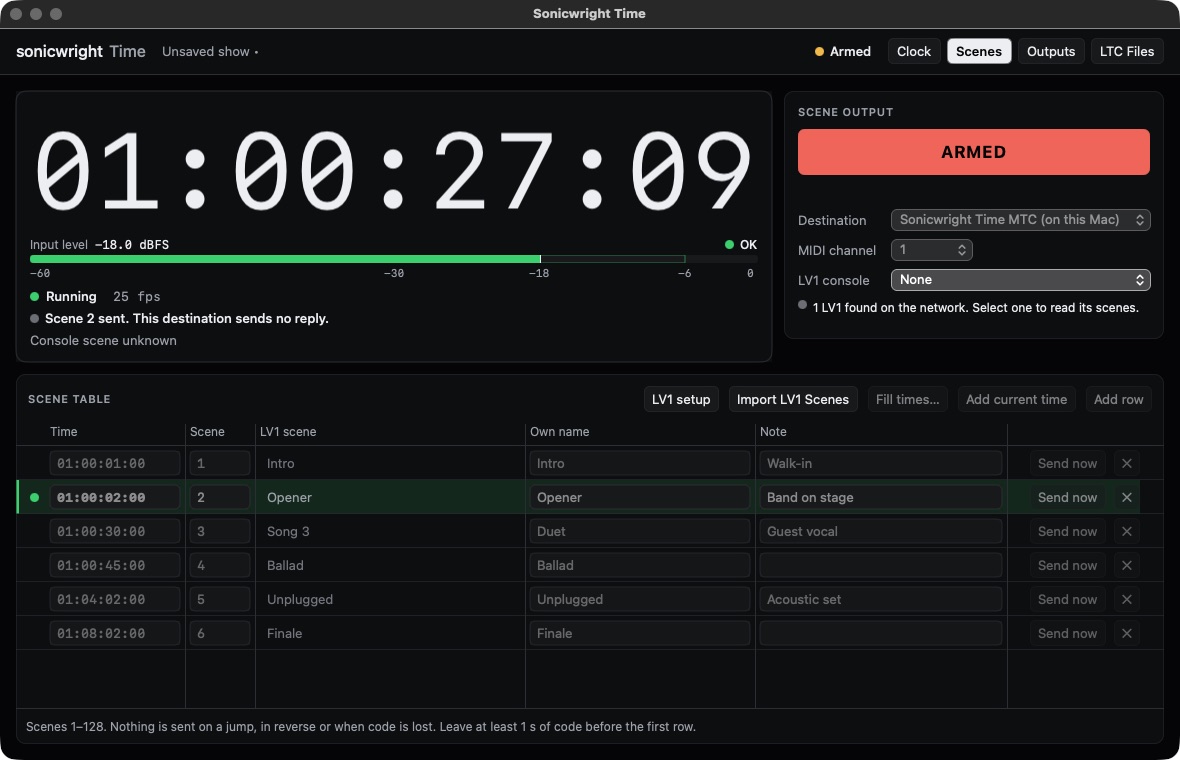
LTC from any inputLTC mis tahes sisendist
SoundGrid Driver, USB or any Core Audio interface. Shows frame rate, level and read quality; flywheel bridges short dropouts.SoundGrid Driver, USB või mis tahes Core Audio helikaart. Näitab kaadrisagedust, taset ja lugemise kvaliteeti; flywheel sillutab lühikesed katkestused.
LV1 scenes by nameLV1 stseenid nime järgi
With LV1 v17 the scene list comes straight from the console; renamed, moved, added and deleted scenes follow by themselves. Older LV1: MIDI Program Change.LV1 v17-ga tuleb stseenide nimekiri otse puldist; ümbernimetatud, liigutatud, lisatud ja kustutatud stseenid tulevad ise kaasa. Vanem LV1: MIDI Program Change.
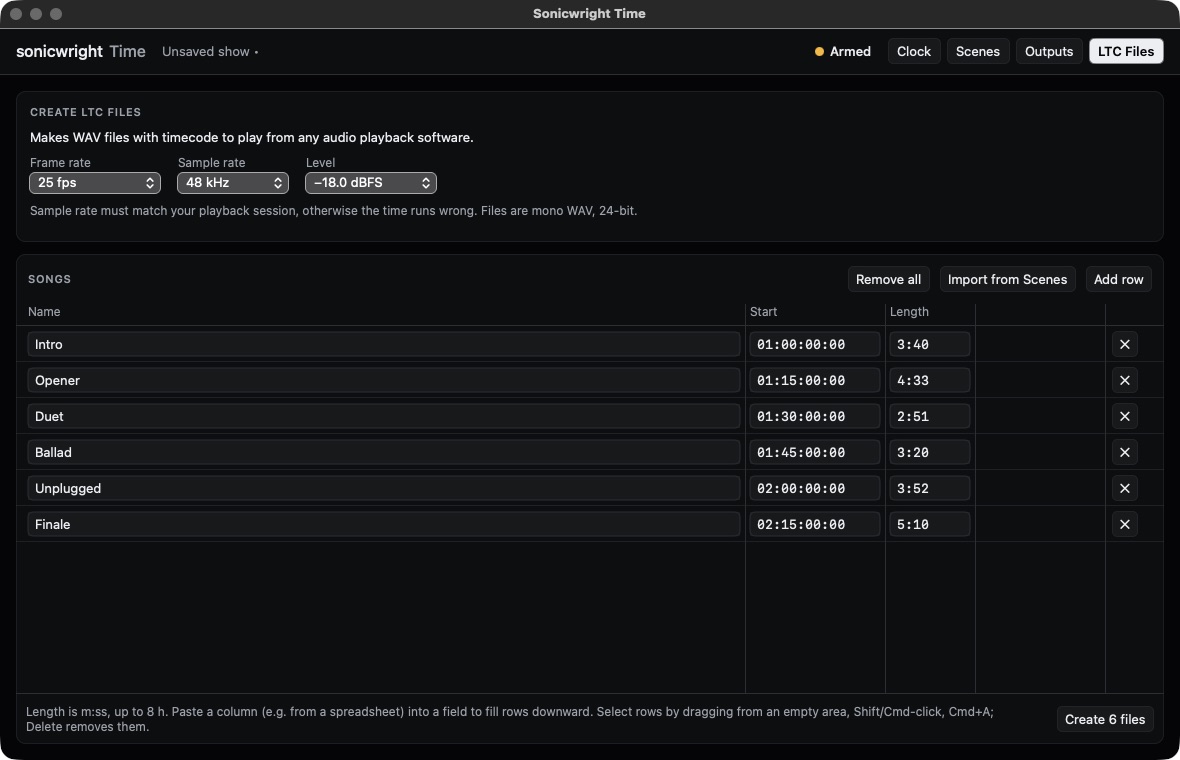
LTC filesLTC failid
Make WAV files with timecode for each song – import from the scene table or paste a column from a spreadsheet. Every file is checked after it is made.Tee iga loo jaoks timecode'iga WAV-fail – impordi stseenide tabelist või kleebi veerg tabelarvutusest. Iga fail kontrollitakse pärast tegemist.
OutputsVäljundid
MTC, LTC, Art-Net timecode and OSC from the same clock, with offset and frame rate conversion.MTC, LTC, Art-Net timecode ja OSC samast kellast, nihke ja kaadrisageduse teisendusega.
LTC files for your playbackLTC failid mängimiseks
Also includedVeel
- Show files (.swtime): when another session is loaded in LV1, Time offers the matching showShow-failid (.swtime): kui LV1-s laaditakse teine sessioon, pakub Time sobivat show'd
- Nothing is sent on a jump, in reverse or when code is lost; after a dropout Time offers the right scene with one clickHüppel, tagurpidi jooksul ja koodi katkemisel ei saadeta midagi; pärast katkestust pakub Time õiget stseeni ühe klõpsuga
- Fill times: first time and step (e.g. every 15 minutes) for all rows at onceTäida ajad: esimene aeg ja samm (nt iga 15 minuti järel) kõigile ridadele korraga
- English and EstonianInglise ja eesti keeles
LV1 setup (v17 or newer)LV1 seadistus (v17 või uuem)
- On LV1: Setup → System Inventory → Controls, add MyRemote v17.LV1-s: Setup → System Inventory → Controls, lisa MyRemote v17.
- Connect the Mac to the same network as the console – the SoundGrid cable is enough.Ühenda Mac puldiga samasse võrku – SoundGridi kaablist piisab.
- When macOS asks about the local network, click Allow.Kui macOS küsib kohaliku võrgu kohta, vajuta Allow.
- In Time on the Scenes tab, choose your console and set Destination to LV1 network.Time'i vahelehel Scenes vali oma pult ja sihtkohaks LV1 network.
Older LV1 versions work over MIDI (rtpMIDI) – the steps are in the app under LV1 setup.Vanemad LV1 versioonid töötavad MIDI kaudu (rtpMIDI) – juhis on programmis nupu LV1 setup all.
InstallingPaigaldamine
- Open the downloaded ZIP – it unpacks to Sonicwright Time.Ava allalaaditud ZIP – sellest tuleb välja Sonicwright Time.
- Drag Sonicwright Time into your Applications folder. When updating, replace the old one – your settings stay.Lohista Sonicwright Time kausta Applications (Rakendused). Uuendamisel asenda vana – seaded jäävad alles.
- Open it. macOS will say it can't verify the app – click Done.Ava see. macOS ütleb, et ei saa rakendust kontrollida – klõpsa Valmis (Done).
- Go to System Settings → Privacy & Security, scroll down and click Open Anyway next to Sonicwright Time. Confirm with your password.Ava Süsteemiseaded → Privaatsus ja turvalisus (System Settings → Privacy & Security), keri alla ja klõpsa Sonicwright Time'i juures Ava siiski (Open Anyway). Kinnita parooliga.
- Enter your name and email and click Start trial (or enter your license key).Sisesta nimi ja e-post ning vajuta Alusta prooviaega (või sisesta litsentsivõti).
Steps 3 and 4 are only needed the first time. The warning appears because the app is not yet notarized by Apple. Time checks for updates by itself.Samme 3–4 on vaja teha ainult esimesel korral. Hoiatus tuleb sellepärast, et Apple ei ole programmi veel notariseerinud. Time kontrollib uuendusi ise.
Questions or feedback? Write toKüsimused või tagasiside? Kirjuta info@sonicwright.com